

Advanced Wallets
Set Up Advanced Wallets Infrastructure
Overview
Advanced wallets are a type of self-custodial hot wallet that enable you to have the greatest control over your user and backup keys. These wallets leverage two instances of Express servers, enabling you to manage your user and backup keys within your region or jurisdiction (also known as on-prem) using your own hardware security module (HSM) or key management service (KMS). Like other wallet types, BitGo manages the BitGo key.
You can deploy the application as a standard Node.js process. BitGo recommends using the included Docker Compose file, since it's configured to run both services with proper network isolation for enhanced security.
Architecture
Advanced wallets use the following two BitGo Express servers:
- Advanced Wallet Manager (AWM) - A lightweight, dedicated server isolated within a secure internal subnet with no internet access that you use for independent key generation, multisig transaction signing, and wallet recovery.
- Master BitGo Express (MBE) - A normal Express server residing outside your secure subnet that's a full-featured API gateway. The MBE orchestrates operations between BitGo APIs on the public network and the AWM on your internal network. MBE requires outbound network access to
app.bitgo.com(production) orapp.bitgo-test.com(test). Allow this traffic in your firewall rules before deploying.
Note
These two Express servers are exclusively for advanced wallets. They don't replace the standard BitGo Express service that you can use with other wallets.
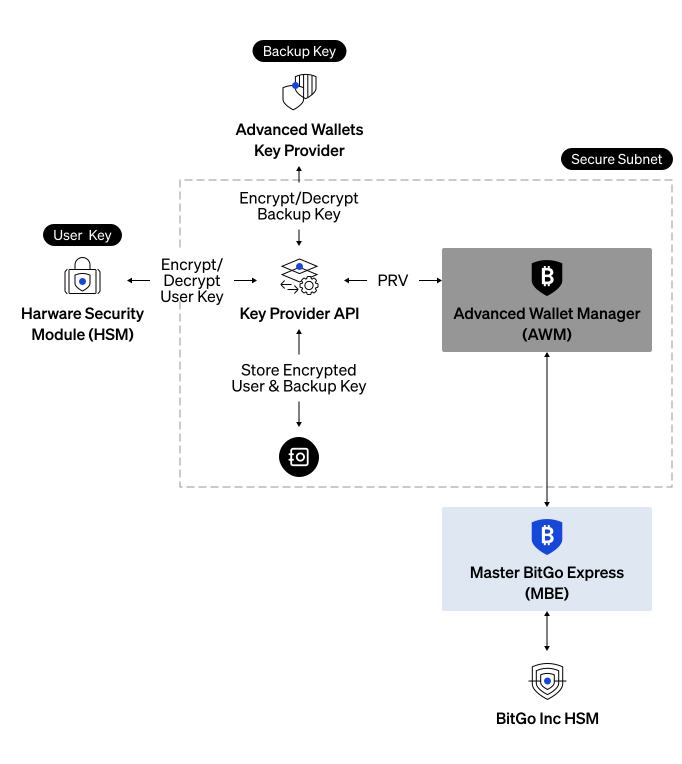
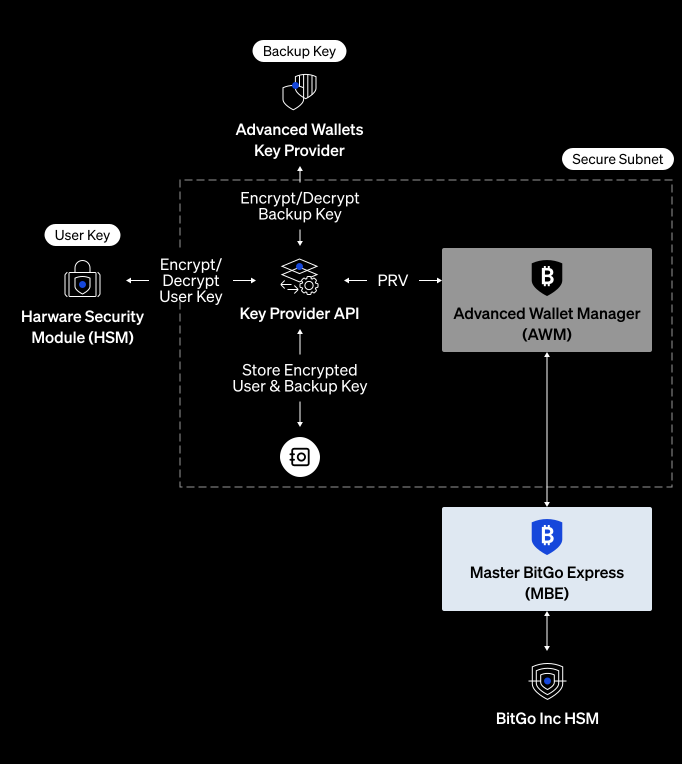
The AWM uses Transport Layer Security (TLS) with mutual authentication (mTLS) to restrict access, only accepting incoming communication from MBE and outgoing communication to your key management service (KMS). These communication limitations protect your private keys from exposure and unauthorized access.
The AWM integrates with your external advanced wallets key provider API. This API is an abstraction layer for HSM and KMS providers, handling both encryption and decryption of your private keys, while securely storing the encryptedPrv values in its own dedicated database. BitGo provides the API specification and this integration guide, so you can flexibly manage encryption and implementation with your own interfaces and integrating with your preferred HSM and KMS.
The AWM requires a compatible key provider API for all secure key operations. You must provide your own implementation (such as AWS CloudHSM and Dinamo HSM), using the BitGo provided Key provider API interface specification.
Note:
BitGo doesn't provide the key provider integration. You must implement this separately. You can select any KMS you prefer, so long as it's compatible with the BitGo provided key provider API interface specification.
You can reference the following example implementations:
Key Features
- Complete Infrastructure Control - Host and manage all components in your own secure environment.
- KMS and HSM Integration - Bring your own KMS and HSM.
- Network Isolation - The AWM operates in a completely isolated network segment with no external internet access.
- mTLS Security - Mutual TLS with client certificate validation for secure inter-service communications.
- Flexible Configuration - Environment-based setup with file or variable-based certificates.
Deployment Options
You can deploy advanced wallets on-premises, in a cloud environment, or in a hybrid configuration. Use the following guidance to choose the right topology for your security requirements.
| Component | On-Premises | Cloud | Notes |
|---|---|---|---|
| Master BitGo Express (MBE) | Supported | Supported | MBE must have outbound network access to the BitGo API (app.bitgo.com for production, app.bitgo-test.com for test). |
| Advanced Wallet Manager (AWM) | Recommended | Conditional | AWM must run on an isolated network segment with no inbound or outbound internet access. Cloud deployments are only acceptable when your security policy doesn't require physical air-gapping. |
| KMS API | Recommended | Conditional | Co-locate the KMS API with your key store so that encrypted private keys and key-unwrapping operations stay in the same trust boundary. |
| KMS database | Recommended | Conditional | Co-locate with the KMS API. BitGo recommends a production-grade database with encryption at rest. The demo KMS implementation uses SQLite for local testing only. |
Full On-Premises
Run MBE, AWM, the KMS API, and the KMS database inside your own data center. MBE sits in your internet-facing zone and AWM, the KMS API, and the database sit in an isolated internal zone. This topology gives you the strongest isolation and is the recommended pattern when your policy requires that private keys never leave on-premises infrastructure.
Hybrid Cloud
Run MBE in your cloud environment for operational flexibility and keep AWM, the KMS API, and the database inside an isolated internal subnet or private VPC. This pattern is acceptable when your definition of cold storage doesn't require a physical air-gap. Confirm your security requirements before adopting this topology.
System Requirements
Use the following tables to size your on-premises hardware or cloud instances for each self-hosted component. vCPU counts are approximate and may vary by cloud provider and hardware generation; any modern x86_64 processor (2.0 GHz+) is sufficient.
Advanced Wallet Manager (AWM)
| Specification | Requirement |
|---|---|
| CPU | 2 vCPUs minimum; 4 vCPUs recommended for production |
| Memory (RAM) | 500 MiB minimum; 870 MiB–1.2 GiB recommended for production |
| Storage | 1 GiB minimum; 2 GiB recommended |
| Operating system | Linux (x86_64) |
| Runtime | Node.js 22.1.0 or higher |
| Container base image | node:22-alpine |
| Inbound ports | 3080 (accepts connections from MBE only over the internal network) |
| Outbound connectivity | KMS API only; no public internet access |
Master BitGo Express (MBE)
| Specification | Requirement |
|---|---|
| CPU | 2 vCPUs minimum; 4 vCPUs recommended for production |
| Memory (RAM) | 1.5 GiB minimum; 2 GiB recommended for production |
| Storage | 1 GiB minimum; 2 GiB recommended |
| Operating system | Linux (x86_64) |
| Runtime | Node.js 22.1.0 or higher |
| Container base image | node:22-alpine |
| Inbound ports | 3081 (accepts connections from your application) |
| Outbound connectivity | AWM on your internal network and the BitGo API (app.bitgo.com for production, app.bitgo-test.com for test) |
Prerequisites
Ensure your system has the following:
- Node.js version 22.1.0 or higher.
- npm or yarn for managing project dependencies.
- OpenSSL for generating TLS certificates.
- Docker and Docker Compose.
- You must set up your own key provider API integration.
- Sign an Advanced Wallets license. To learn more, contact sales@bitgo.com.
Cookbooks
Need just the steps? Expand a cookbook below to get started:
Set Up Infrastructure (Testnet)Open Cookbook Set Up Infrastructure (Production)Open CookbookInstall Project
1. Clone Repository
# Clones the repo using SSH
git clone git@github.com:BitGo/advanced-wallets.git

# Navigates to your `advanced-wallets` directory
cd advanced-wallets
2. Install Dependencies
npm install
3. Build Project
npm run build
Test Locally
Before configuring your production setup, BitGo recommends running the application locally for development and testing. When you run the full application locally, you can start both the AWM and the MBE from the same machine. For local development, you can test with or without mTLS authentication or with self-signed demo certificates. If you're testing locally with mTLS, then you must create certificates.
The following code samples use Node.js without mTLS.
1. Start AWM
TLS_MODE=disabled \
BITGO_ENV=test \
APP_MODE=advanced-wallet-manager \
ADVANCED_WALLET_MANAGER_PORT=3080 \
KEY_PROVIDER_URL=http://localhost:3000 \
npm start
Step Result
> @bitgo/advanced-wallets@2.0.0 start
> nodemon

[nodemon] 3.1.10
[nodemon] to restart at any time, enter `rs`
[nodemon] watching path(s): src/**/*.ts
[nodemon] watching extensions: ts
[nodemon] starting `npm run build && node ./bin/advanced-wallet-manager`

> @bitgo/advanced-wallets@2.0.0 build
> npm run tsc -- --build --incremental --verbose . && cp package.json dist/


> @bitgo/advanced-wallets@2.0.0 tsc
> tsc --build --incremental --verbose .

[4:54:36 PM] Projects in this build:
    * tsconfig.json

[4:54:36 PM] Project 'tsconfig.json' is up to date because newest input 'src/masterBitgoExpress/routers/sendManyRoute.ts' is older than output 'dist/tsconfig.tsbuildinfo'

2025-12-05 16:54:38:5438 info: Starting in Advanced Wallet Manager mode...
2025-12-05 16:54:38:5438 info: === Certificate Loading ===
2025-12-05 16:54:38:5438 info: ==========================
2025-12-05 16:54:38:5438 info: App is initializing
2025-12-05 16:54:38:5438 info: Log location: /Users/vivianmccarty/advanced-wallets/logs/http-access.log
2025-12-05 16:54:38:5438 info: Advanced Wallet Manager starting...
2025-12-05 16:54:38:5438 info: Base URI: http://localhost:3080
2025-12-05 16:54:38:5438 info: Port: 3080
2025-12-05 16:54:38:5438 info: Bind: localhost
2025-12-05 16:54:38:5438 info: Key provider URL: http://localhost:3000
2025-12-05 16:54:38:5438 info: Recovery Mode: false
2025-12-05 16:54:38:5438 info: === mTLS Configuration ===
2025-12-05 16:54:38:5438 info: TLS Mode: disabled
2025-12-05 16:54:38:5438 info: ========================
2025-12-05 16:54:38:5438 info: Advanced Wallet Manager started successfully
2. Start MBE
Open a new terminal, navigate to the advanced-wallets directory, and run the following:
TLS_MODE=disabled \
BITGO_ENV=test \
APP_MODE=master-express \
MASTER_EXPRESS_PORT=3081 \
ADVANCED_WALLET_MANAGER_URL=http://localhost:3080 \
npm start
Step Result
> @bitgo/advanced-wallets@2.0.0 start
> nodemon

[nodemon] 3.1.10
[nodemon] to restart at any time, enter `rs`
[nodemon] watching path(s): src/**/*.ts
[nodemon] watching extensions: ts
[nodemon] starting `npm run build && node ./bin/advanced-wallet-manager`

> @bitgo/advanced-wallets@2.0.0 build
> npm run tsc -- --build --incremental --verbose . && cp package.json dist/


> @bitgo/advanced-wallets@2.0.0 tsc
> tsc --build --incremental --verbose .

[4:55:27 PM] Projects in this build:
    * tsconfig.json

[4:55:27 PM] Project 'tsconfig.json' is up to date because newest input 'src/masterBitgoExpress/routers/sendManyRoute.ts' is older than output 'dist/tsconfig.tsbuildinfo'

2025-12-05 16:55:28:5528 info: Starting in Master Express mode...
2025-12-05 16:55:28:5528 info: === Certificate Loading ===
2025-12-05 16:55:28:5528 info: ==========================
2025-12-05 16:55:28:5528 info: Master express app is initializing
2025-12-05 16:55:28:5528 info: Log location: /Users/vivianmccarty/advanced-wallets/logs/http-access.log
2025-12-05 16:55:28:5528 info: ✓ AWM Client initialized with URL: http://localhost:3080
2025-12-05 16:55:28:5528 info: Master Express server starting...
2025-12-05 16:55:28:5528 info: Base URI: http://localhost:3081
2025-12-05 16:55:28:5528 info: Port: 3081
2025-12-05 16:55:28:5528 info: Bind: localhost
2025-12-05 16:55:28:5528 info: Recovery Mode: false
2025-12-05 16:55:28:5528 info: Advanced Wallet Manager URL: http://localhost:3080
2025-12-05 16:55:28:5528 info: === mTLS Configuration ===
2025-12-05 16:55:28:5528 info: TLS Mode: disabled
2025-12-05 16:55:28:5528 info: ========================
2025-12-05 16:55:28:5528 info: Master Express server started successfully
3. Test Connections
You can test your local setup using the following health check endpoints. The first endpoint tests MBE directly on port 3081. The second endpoint tests the connection between AWM and MBE to ensure both services can communicate properly.
Endpoints:
# Ping MBE
curl -X POST http://localhost:3081/advancedwallet/ping

# Test connection between services
curl -X POST http://localhost:3081/ping/advancedWalletManager
Step Result
# Test MBE
{"status":"master express server is ok!","timestamp":"2025-12-05T22:59:54.738Z"}

# Test connection between services
{"status":"Successfully pinged advanced wallet manager","awmResponse":{"status":"advanced wallet manager server is ok!","timestamp":"2025-12-05T23:00:57.970Z"}}
Next Steps
To continue local testing on your machine, see the following guides:
Once you're satisfied with your local development, follow the steps below to set up advanced wallets in production with mTLS security.
Configure Production Security
Production deployments use mTLS security. Each connection between services requires a server certificate on the receiving service and a separate client certificate on the calling service. You must secure the following three connections:
- Your application to MBE.
- MBE to AWM.
- AWM to your key provider.
Repeat the key generation and CSR steps below for each certificate, and rotate them regularly according to your organization's security policy. See the Configuration Reference for the environment variables that correspond to each connection.
1. Generate mTLS Key
openssl genrsa -out private.key 2048
Step Result
You generated a 2048-bit RSA private key and saved it to a file named private.key. Store this in a secure location with restricted file permissions.
Generating RSA private key, 2048 bit long modulus
.......+++++
.......................+++++
2. Generate CSR
Generate a certificate signing request (CSR) by running the following command and answering the questions that display in your terminal:
openssl req -new -key private.key -out request.csr
Step Result
You generated a CSR and saved it to a file named request.csr.
3. Submit CSR to CA
Submit your CSR file, request.csr, to a trusted certificate authority (CA) for signing. Follow the instructions outlined by your preferred CA and Public Key Infrastructure (PKI) of your organization.
Step Result
Once the CA processes your CSR and completes any necessary verification, you're issued a signed certificate for your domain. Save the signed certificate to a file, with a .crt extension.
4. Get Certificate Fingerprints
Obtain the client certificate fingerprints for the MTLS_ALLOWED_CLIENT_FINGERPRINTS environment variable. This restricts which specific client certificates can connect to your servers, even if they're otherwise valid and trusted certificates.
Warning
Always set MTLS_ALLOWED_CLIENT_FINGERPRINTS before running AWM or MBE in production. If the allowlist is empty, both services accept any client certificate signed by a trusted CA, which removes the protection that mTLS is meant to provide.
openssl x509 -in /path/to/client-cert.crt -noout -fingerprint -sha256 | cut -d'=' -f2
Step Result
You receive a SHA-256 fingerprint. Add your fingerprints to the MTLS_ALLOWED_CLIENT_FINGERPRINTS environment variable in the docker-compose.yml file of your project. You can specify multiple fingerprints as a comma-separated list.
sha256:D1:E9:5A:F2:8C:3B:67:0A:47:15:F9:6D:E2:3F:8B:12:9E:5C:7A:D4:8F:1E:6B:0D:C3:A9:2F:5B:E8:4D:7C:10
Run in Production
Ensure Docker, Docker Compose, and your key provider API implementation are all running on your host machine.
Deploying the containers using Docker Compose creates two distinct networks:
- my-internal-network
- Internal bridge network with
internal: true. - Used for secure AWM isolation and MBE-to-AWM communication.
- No external internet access for security.
- Internal bridge network with
- my-public-network
- Public bridge network.
- Used for external access to MBE APIs.
- Connected to host networking.
1. Configure Docker Compose
Before running in production, configure docker-compose.yml by doing the following:
- Enable the mTLS environment variables for both services. By default,
TLS_MODE=disabledfor local testing. - Add a certificate volume mount (for example,
- ./certs:/app/certs:ro). - Switch URLs from
http://tohttps://.
Your configuration settings my differ, but you can reference the following example to see one implementation using the default docker-compose.yml. Always refer to the latest version in the repository for any updates. For the full list of TLS settings, see the Configuration Reference.
version: '3.8'

services:
  # Service for advanced-wallet-manager (AWM)
  advanced-wallet-manager:
    build: . # Build from the Dockerfile inside the repo
    container_name: advanced-wallet-manager
    networks:
      - my-internal-network # Only part of the internal network
    environment:
      # Application mode (required)
      - APP_MODE=advanced-wallet-manager

      # Network settings
      - ADVANCED_WALLET_MANAGER_PORT=3080
      - BIND=0.0.0.0
      - TIMEOUT=305000
      - KEEP_ALIVE_TIMEOUT=65000
      - HEADERS_TIMEOUT=66000

      # TLS settings
      - TLS_MODE=mtls
      - CLIENT_CERT_ALLOW_SELF_SIGNED=false

      # Key provider settings (required)
      - KEY_PROVIDER_URL=https://172.20.0.1:3000 # UPDATE TO YOUR OWN KEY PROVIDER URL
      - KEY_PROVIDER_SERVER_CERT_ALLOW_SELF_SIGNED=false

      # Key provider TLS settings
      - KEY_PROVIDER_SERVER_CA_CERT_PATH=/app/certs/kms-ca-cert.pem
      - KEY_PROVIDER_CLIENT_TLS_KEY_PATH=/app/certs/kms-client-key.pem
      - KEY_PROVIDER_CLIENT_TLS_CERT_PATH=/app/certs/kms-client-cert.pem

      # Server TLS settings
      - SERVER_TLS_KEY_PATH=/app/certs/awm-server-key.pem
      - SERVER_TLS_CERT_PATH=/app/certs/awm-server-cert.pem
      - MTLS_ALLOWED_CLIENT_FINGERPRINTS=ABC123,DEF456

      # Logging and debug
      - HTTP_LOGFILE=logs/http-access.log
      - RECOVERY_MODE=false
      - NODE_ENV=production
      - LOG_LEVEL=info
    restart: always
    ports: [] # No public ports exposed
    volumes:
      - ./logs:/app/logs # Mount logs directory
      - ./certs:/app/certs:ro # Mount certificates (read-only)

  # Service for master-bitgo-express (MBE) - both internal and publicly accessible
  master-bitgo-express:
    build: . # Build from the Dockerfile inside the repo
    container_name: master-bitgo-express
    networks:
      - my-internal-network # Connect to the internal network for internal communication
      - my-public-network # Connect to the public network for external access
    environment:
      # Application mode (required)
      - APP_MODE=master-express

      # Network settings
      - MASTER_EXPRESS_PORT=3081
      - BIND=0.0.0.0
      - TIMEOUT=305000
      - KEEP_ALIVE_TIMEOUT=65000
      - HEADERS_TIMEOUT=66000

      # BitGo API settings
      - BITGO_ENV=prod
      - BITGO_DISABLE_ENV_CHECK=true
      - BITGO_AUTH_VERSION=2
      # - BITGO_CUSTOM_ROOT_URI=https://custom-bitgo-api.com
      # - BITGO_CUSTOM_BITCOIN_NETWORK=testnet

      # Advanced Wallet Manager connection (required)
      - ADVANCED_WALLET_MANAGER_URL=https://advanced-wallet-manager:3080
      - AWM_SERVER_CERT_ALLOW_SELF_SIGNED=false

      # AWM TLS settings
      - AWM_SERVER_CA_CERT_PATH=/app/certs/awm-ca-cert.pem
      - AWM_CLIENT_TLS_KEY_PATH=/app/certs/awm-client-key.pem
      - AWM_CLIENT_TLS_CERT_PATH=/app/certs/awm-client-cert.pem

      # TLS settings
      - TLS_MODE=mtls
      - CLIENT_CERT_ALLOW_SELF_SIGNED=false

      # Server TLS settings
      - SERVER_TLS_KEY_PATH=/app/certs/mbe-server-key.pem
      - SERVER_TLS_CERT_PATH=/app/certs/mbe-server-cert.pem
      - MTLS_ALLOWED_CLIENT_FINGERPRINTS=ABC123,DEF456

      # Logging and debug
      - HTTP_LOGFILE=logs/http-access.log
      - RECOVERY_MODE=false
      - NODE_ENV=production
      - LOG_LEVEL=info
    restart: always
    ports:
      - '3081:3081' # Expose MBE publicly on port 3081
    volumes:
      - ./logs:/app/logs # Mount logs directory
      - ./certs:/app/certs:ro # Mount certificates (read-only)

# Networks section
networks:
  my-internal-network:
    driver: bridge # Internal communication network, no access to the internet
    internal: true # Ensures this network is not accessible from outside

  my-public-network:
    driver: bridge # Public network, allowing external access to MBE
Note
If the MBE container can't resolve app.bitgo.com (or app.bitgo-test.com), add an explicit dns: entry to the master-bitgo-express service in your docker-compose.yml (for example, dns: 8.8.8.8). Some container runtimes don't inherit the host's DNS configuration, which blocks MBE from reaching the BitGo API.
2. Start Services
# Navigate to project directory
cd advanced-wallets

# Start both services in background
docker-compose up -d
Step Result
Creating network "advanced-wallets_my-internal-network" with driver "bridge"
Creating network "advanced-wallets_my-public-network" with driver "bridge"
Creating advanced-wallet-manager ... done
Creating master-bitgo-express    ... done
3. Test Connections
Testing your secure endpoints in production deployments requires using valid client certificates that your server trusts.
Before testing, ensure you configure your DNS records or load balancer to route traffic to your servers. For production deployments, you typically configure:
- DNS A records pointing your domain names to the server IP addresses (for example,
awm.internal.example.com→ AWM server,mbe.example.com→ MBE server). - Load balancer rules to distribute traffic across multiple instances of each service.
- Firewall rules to ensure AWM is only accessible from your internal network and MBE.
You can test your production endpoints using the following health checks. The first endpoint tests MBE directly on port 3081. The second endpoint tests the connection between AWM and MBE to ensure both services can communicate securely through mTLS.
Endpoints:
# Test MBE
curl --cert /path/to/client-cert.crt --key /path/to/client-key.key \
  --cacert /secure/certs/mbe-ca.crt \
  https://YOUR_IP_OR_HOSTNAME:3081/advancedwallet/ping

# Test connection between services
curl --cert /path/to/client-cert.crt --key /path/to/client-key.key \
  --cacert /secure/certs/mbe-ca.crt \
  https://YOUR_IP_OR_HOSTNAME:3081/ping/advancedWalletManager
Step Result
# Test MBE
{"status":"master express server is ok!","timestamp":"2025-12-24T18:30:15.482Z"}

# Test connection between services
{"status":"Successfully pinged advanced wallet manager","awmResponse":{"status":"advanced wallet manager server is ok!","timestamp":"2025-12-24T18:30:16.123Z"}}
4. Stop Services
To stop and remove the containers and networks, run:
# Stop and remove containers
docker-compose down
Step Result
Stopping master-bitgo-express    ... done
Stopping advanced-wallet-manager ... done
Removing master-bitgo-express    ... done
Removing advanced-wallet-manager ... done
Removing network advanced-wallets_my-internal-network
Removing network advanced-wallets_my-public-network
Next Steps
To continue building your integration, see Create Advanced Wallets.
You can also download the entire BitGo OpenAPI specification from the API Reference Overview. You can also download just the MBE specification from GitHub or by running the following:
npm run generate:openapi:masterExpress